Leafy Corner Game Settings and Accessibility
Tune difficulty, visuals, and watering helpers before your shop routine sets in.
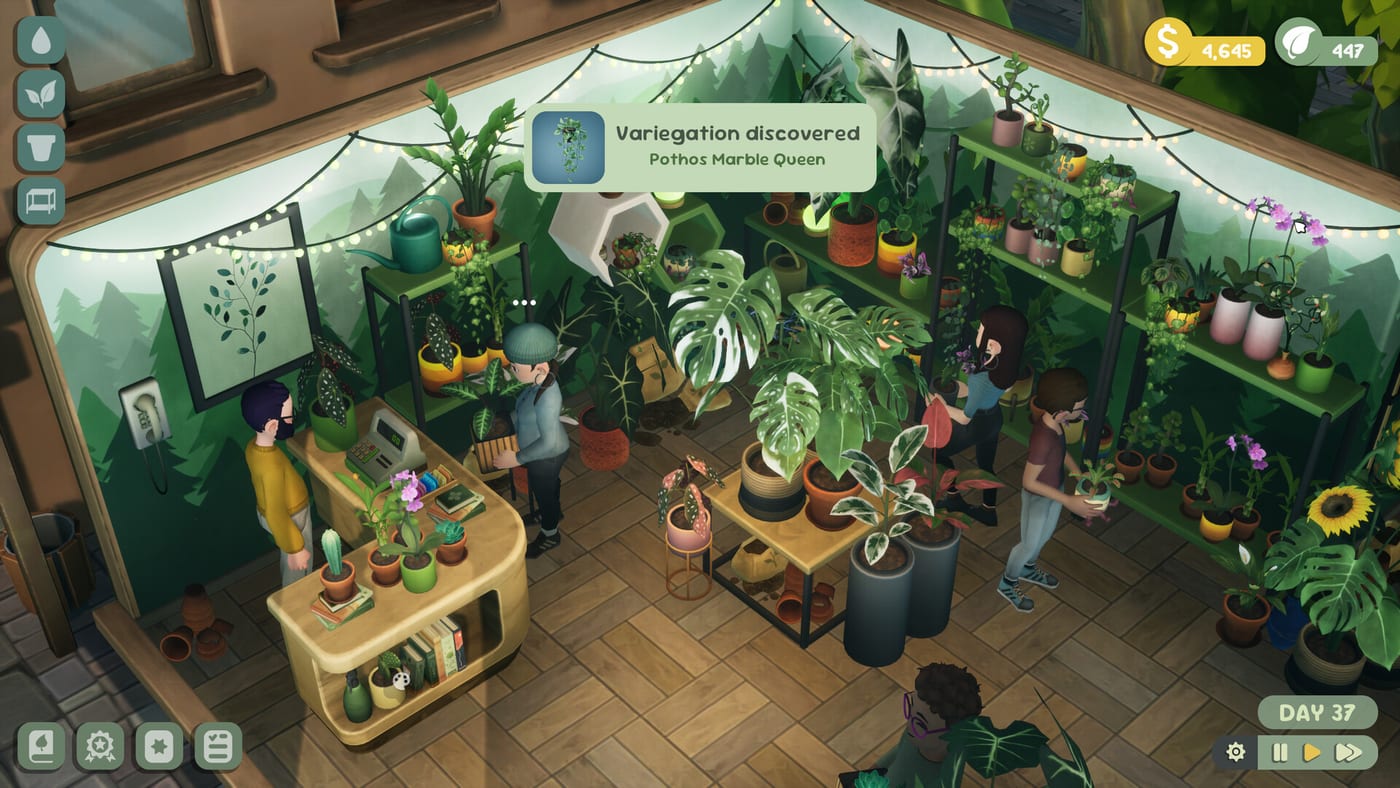
Settings shape your cozy difficulty
Leafy Corner targets relaxation, but Fireline Games ships a substantial options menu in the full release—audio sliders, remappable controls, visual comfort toggles, and gameplay helpers that let you soften or tighten the plant care loop. Preview reviewers highlighted motion blur becoming optional in demo patch 1.0.1, Reduced Watering refinements in demo patch 1.0.2, and gameplay switches such as whether plants can die or require regular watering at all.
The game launched July 30, 2026 at $9.99; Patch 1.0.3 (August 2, 2026) strengthened Reduced Watering and eased watering when many plants fill the shop. Open settings during your first session—before muscle memory locks in from Getting Started. Pair this page with Controls for default bindings on PC, Deck, and console.
Video and comfort options
Motion blur — Demo patch 1.0.1 changed motion blur from always-on to toggleable. Disable it if camera pans during watering make you dizzy on Steam Deck or handheld Switch sessions.
UI scale — Watch launch hotfixes on Updates if droplet icons feel small. Zoom with Z/X equivalents from Controls until scale sliders arrive.
Semi-transparent watering cursor — Demo 1.0.1 added a clearer cursor during watering mode so you can see blues and whites underneath—helpful when learning How to Water Plants.
Gameplay accessibility toggles
Reduced Watering — Lowers how aggressively thirsty icons appear. Essential for accessibility-focused players and handy on Deck—deep dive on Reduced Watering. Demo 1.0.2 fixed overwatered plant handling with this option enabled; patch 1.0.3 increased the effect further and reduced watering pressure in crowded shops.
Plant death — Review coverage notes you can adjust whether neglected plants die or simply slow sales. Cozy players often keep consequences gentle; min-maxers can tighten the loop.
Watering requirements — Some settings reduce or remove mandatory watering frequency for pure decor sandbox play. Re-enable when you want token and reputation progression to matter.
Hints — Optional guidance for customer traits and tasks—useful during First Week before turning hints off for mastery.
Controls and input
Remappable keys — PC players can rebind movement, watering toggle (default C in demo), and interaction keys. Console builds mirror logic on face buttons—see Console Guide.
Mouse-only / controller — Steam categories list full controller support and mouse-friendly UI. Pick the scheme that matches your platform on Platforms and Price.
Steam Deck Verified — Handheld defaults should work day one; tune dead zones in Steam Input if stick drift pans the camera during idle moments. Re-test Reduced Watering after patch 1.0.3 on Deck—see Steam Deck.
Audio and saves
Custom volume sliders — Separate music, SFX, and UI levels for quiet evening sessions. Demo 1.0.2 quieted some variegation discovery sounds—adjust if notifications still feel loud.
Multiple save slots — LadiesGamers preview notes several slots for parallel shop themes without deleting progress—try hardcore watering on one save and relaxed Reduced Watering on another.
Save anytime — Steam lists save-anytime support—pause with Pause and Shop Layout before risky layout experiments. Patch 1.0.3 fixed a pause crash when assigning one plant to multiple customers.
Settings order for new owners
- Disable motion blur if needed.
- Enable Reduced Watering if whites feel stressful—re-test strength after patch 1.0.3.
- Set plant death and watering strictness to your cozy level.
- Remap watering toggle to a comfortable key or bumper.
- Adjust volume, then start First Week Guide.
Settings vs post-1.0.3 balance changes
Patch 1.0.3 also changed base-game balance: crowded shops need less watering even with Reduced Watering off. If your shop felt harsh before August 2, update first, then revisit settings—you may keep Reduced Watering on for comfort or turn it off for slightly tighter pacing.
Known QoL gaps (not settings bugs)
Launch reviewers requested compendium search filters by trait—pet-safe, size, water needs—not yet confirmed as a settings feature. Use the wiki Plant Request Matcher offline until in-game filters ship.
Related pages
- Controls — default keyboard and gamepad map
- Reduced Watering — accessibility watering deep dive
- Patch 1.0.3 — stronger Reduced Watering notes
- Steam Deck — handheld tuning
- Demo Patch 1.0.2 — earlier Reduced Watering fixes
Frequently Asked Questions
Quick answers for Leafy Corner players.
Can you turn off motion blur in Leafy Corner?
Yes. Demo patch 1.0.1 made motion blur toggleable in settings for visual comfort.
What does Reduced Watering do?
It lowers watering frequency pressure. See the dedicated [Reduced Watering](/guides/reduced-watering/) guide.
Can plants die permanently?
Gameplay settings let you adjust death and watering strictness—reviewers note optional gentler modes.
Are controls remappable on PC?
Yes. Pair with [Controls](/controls/) for default bindings before rebinding.